

How Can We Help?
The Importance of Halftones in DTF Printing
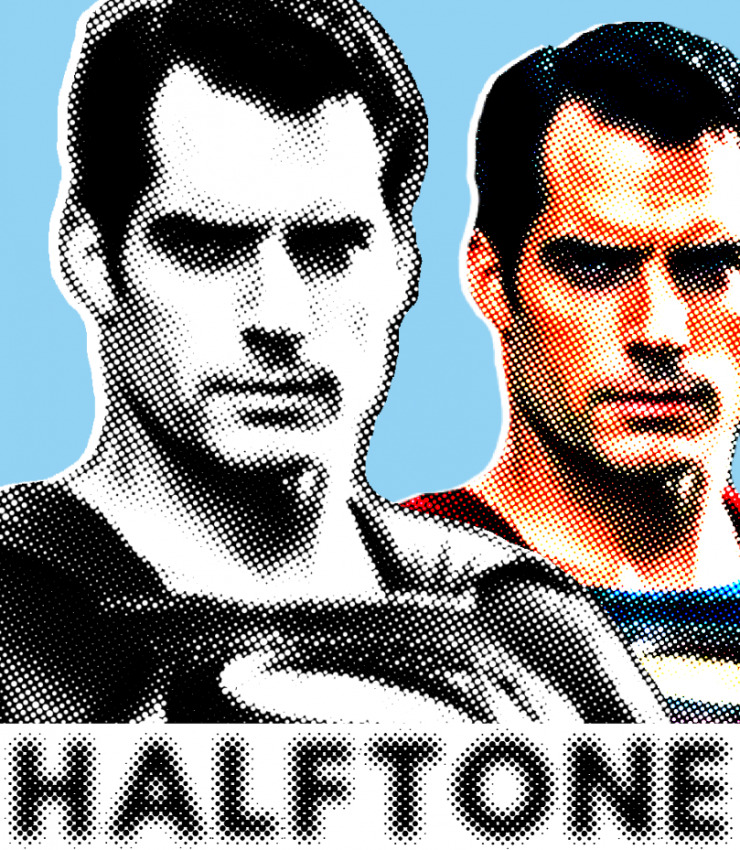
In Direct-to-Film (DTF) printing for 2026, halftoning is a critical technique used to transform solid graphics into a pattern of tiny dots. This process is essential because standard DTF printers cannot natively handle partial transparency, such as soft glows or fading edges.
The importance of halftoning in DTF lies in five key areas: 
- Improved Breathability and Comfort: By breaking up solid blocks of ink into tiny dots, halftones create small gaps that allow air to flow through the fabric. This prevents the “sweat patch” effect common with large, solid plastic-feeling prints.
- Enhanced Softness and Flexibility: Designs using halftones use significantly less ink and adhesive, resulting in a “softer hand”. This allows the printed area to stretch and drape naturally with the garment rather than feeling like a stiff sticker.
- Seamless Blending and Gradients: Halftoning allows for realistic fading effects and shadows that blend naturally into the garment’s color. Without it, soft edges often appear as muddy, blotchy, or surrounded by an unwanted white “halo” due to the white underbase.
- Better Adhesion for Fades: In DTF, semi-transparent pixels often lack enough ink to hold the necessary adhesive powder. Halftones convert these weak areas into solid dots that are large enough to bond reliably to the fabric while still appearing as a fade from a distance.
- Cost Efficiency: Because halftones can replace solid color blocks with patterns, they can reduce ink consumption by up to 60% while maintaining the visual impact of the design.
Key Technical Settings for DTF Halftones
To achieve professional results, designers typically use specialized software like Adobe Photoshop or Affinity Photo to apply these settings:
- Frequency (LPI): Generally, set between 25 to 35 lines per inch for standard garments to ensure dots are large enough (at least 0.5 mm) to hold adhesive.
- Angle: Often set to 22.5 degrees to make the dot pattern less noticeable to the human eye.
- Shape: Round dots are preferred as they provide the smoothest gradients and most consistent ink distribution on fabric.
n 2026, blurry halftone dots in Direct-to-Film (DTF) prints are typically caused by file resolution errors, improper RIP (Raster Image Processor) software settings, or hardware misalignment.
To resolve blurriness and restore sharp detail, follow these troubleshooting steps:
1. Optimize Source File Resolution
Blurry halftones are often the result of “garbage in, garbage out”.
- Target 300 DPI: Ensure your original design is at least 300 DPI at the final print size before applying halftones.
- Avoid Upscaling: If you must enlarge a small image, use AI upscaling or “Preserve Details 2.0” in Photoshop, followed by a sharpening filter, to minimize pixel blur.
- Use Vector Files: Whenever possible, use Adobe Illustrator or other vector software to create artwork that stays crisp regardless of scale.
2. Adjust Software and RIP Settings
Incorrect digital processing can cause dots to bleed or lose definition.
- Increase Frequency (LPI): If dots look too blocky or fuzzy after pressing, use a higher frequency (e.g., 35 LPI or more) for finer detail.
- Apply a White Underbase Choke: Blurriness often occurs when the white underbase “peeks” or bleeds out from under the color dots. Set a 1-pixel choke in your RIP software to pull the white layer slightly inward.
- Reduce Ink Density: Excessive ink volume can cause dots to bleed together on the film. Lower the ink limits in your RIP settings to prevent “coalescence” or smudging.
3. Calibrate and Maintain Hardware
Mechanical issues can cause “ghosting” or blurred edges.
- Align the Printheads: Perform a bi-directional alignment test. If prints are blurry in bi-directional mode but sharp in uni-directional mode, your alignment is out of sync.
- Clean the Printhead and Encoder Strip: Build-up on the printhead nozzles or dust on the encoder strip can cause ink to spray inconsistently, leading to fuzzy dot edges.
- Control Humidity: Maintain a stable environment with 40%–60% humidity. Low humidity can cause static that makes ink mist around the dots, while high humidity prevents proper ink drying on the film.
4. Refine Heat Pressing Technique
Blurriness appearing only after the heat press usually relates to temperature or pressure.
- Avoid Over-Pressing: Excessive heat or time (typically over 12 seconds at 320°F) can cause the adhesive and ink to “pancake” and spread, blurring the fine halftone pattern.
- Check Pressure: Use even, firm pressure. Uneven pressure can cause parts of the halftone to shift or smear during the transfer process.
DTF Troubleshooting: Why Your Prints Fail & How to Fix Them for Good
Here’s an additional resource that could help.